SailorSkillsPro
Loading…
Loading…
Getting started
Welcome aboard. When you tap Start, a short setup wizard walks you through these steps in this order. Skip anything and come back to it later: this guide shows where each step lives in the app.
Step 1
Tap Start on this page. The first question is how you will use SailorSkills Pro: I run my own business sets up your business, or I’m joining a team if you dive for someone else.
Joining a team needs no sign-up here. The business owner invites you by email from Settings › Team & pay › Add a diver, and the link in that email creates your login and puts you on their team. The rest of this guide is for owners.
The setup wizard is not pictured here yet.
Step 2
Enter your business name, your name, your email and a password, then confirm your email. Your business is ready right away on the Free plan. No card is needed until you choose Pro at the end.
From here on, the wizard saves as you go. Every step after this one has Skip for now, and you can stop and pick up later on any computer: log in and tap Continue setup on your Home. Anything you skip stays on your setup checklist.
Came from a link with a promo code? Sign up from that link. The code stays on your account for when you start Pro.
No screenshot: the sign-up page changes with each account.
Step 3
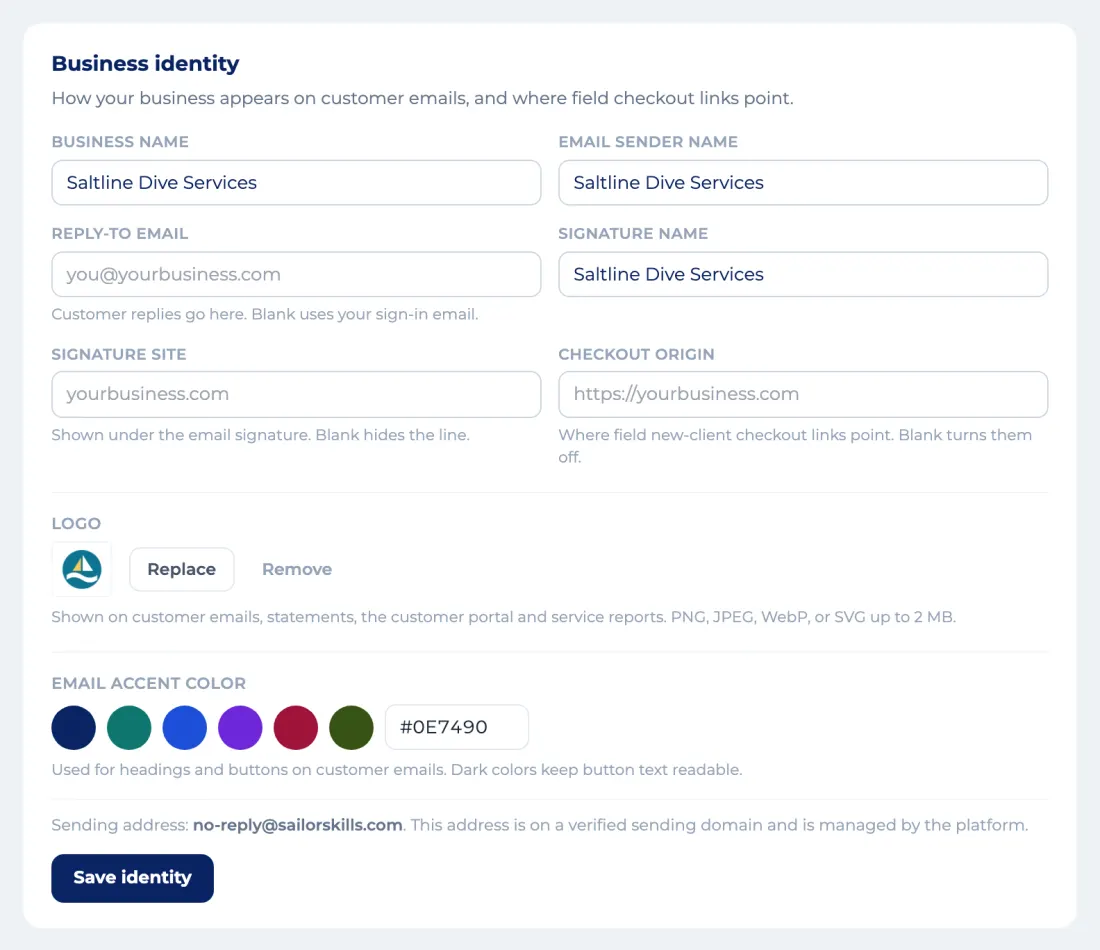
The wizard draws your business name as a text logo. Pick the style that looks like you and an accent color; the preview shows the top of every email and invoice your customers get. Have a logo file? Upload it instead (PNG, JPEG, WebP or SVG, up to 2 MB).
Later: Settings › Business identity has your logo, the accent color, the sender name and the reply-to address.
Step 4
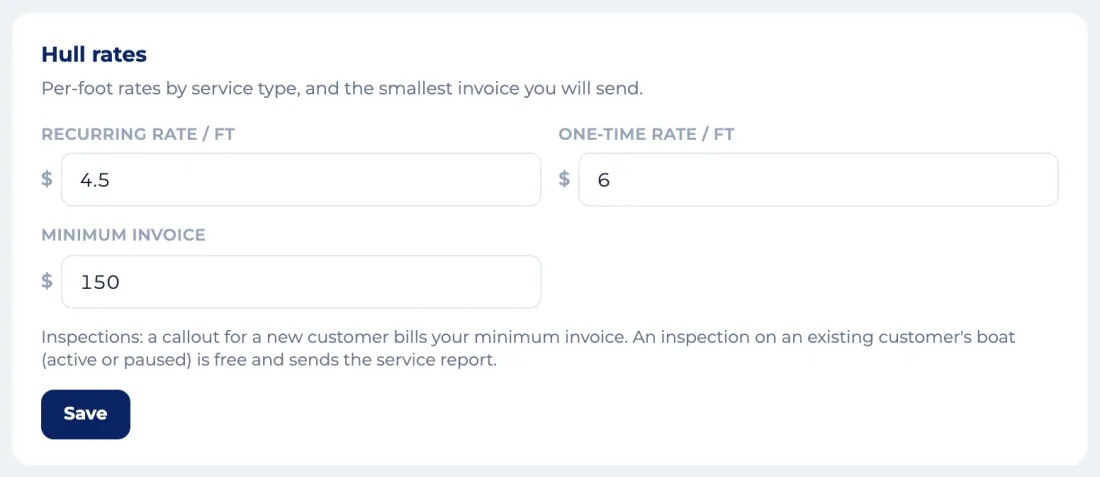
Check the starting prices: your per-foot rates, the minimum charge per visit, each extra propeller and the growth surcharges. Under Add common items, type a price next to anything else you charge for; an item left blank is not added.
Later: Settings › Pricing.
Step 5
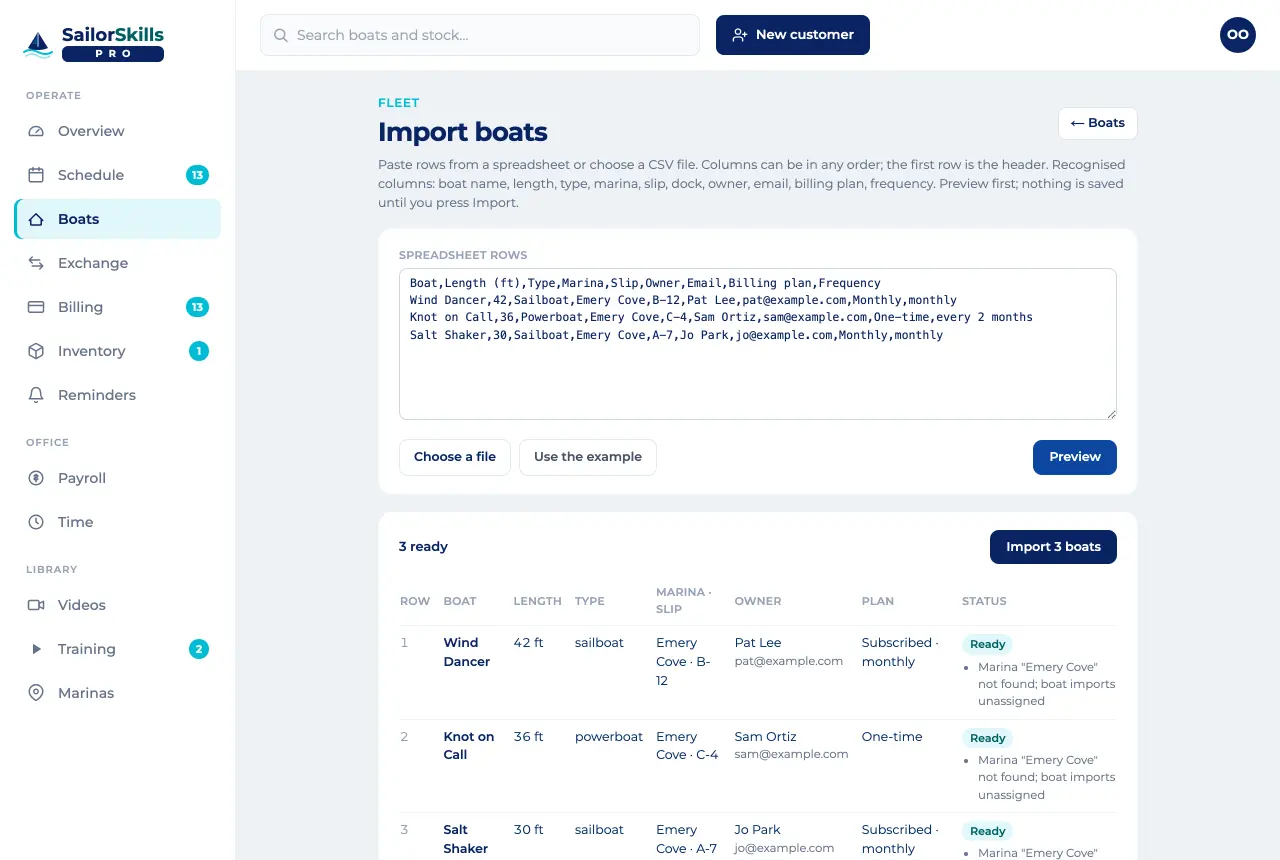
Import a spreadsheet, or add boats one at a time. While you set up, add every boat you have, even past the Free plan’s 15. A last cleaned date for each boat helps the next step plan your weeks.
Later: Boats › Import boats, or New customer at the top of the screen for one owner and their boat. Import columns can be in any order, and nothing is saved until you press Import.
Moving from Jobber? A Jobber client export imports directly, in the wizard or in Import boats; check the boat names and add lengths before importing.
Step 6
Before your first schedule, give each marina its address: open it from Marinas and, under Location, tap Add address. Then set where each diver’s day starts and ends in Settings › Schedule › Routing. Pro then orders each day marina to marina by drive time, then dock by dock.
The wizard plans your next 4 weeks: each boat’s first visit comes from its due date, or its last cleaning plus how often it is cleaned, spread over the work days you pick. Change a boat’s interval or the work days and the plan updates. Use this schedule saves it as recurring visits.
Later: Schedule, where you can move any visit.
The setup wizard is not pictured here yet.
Step 7
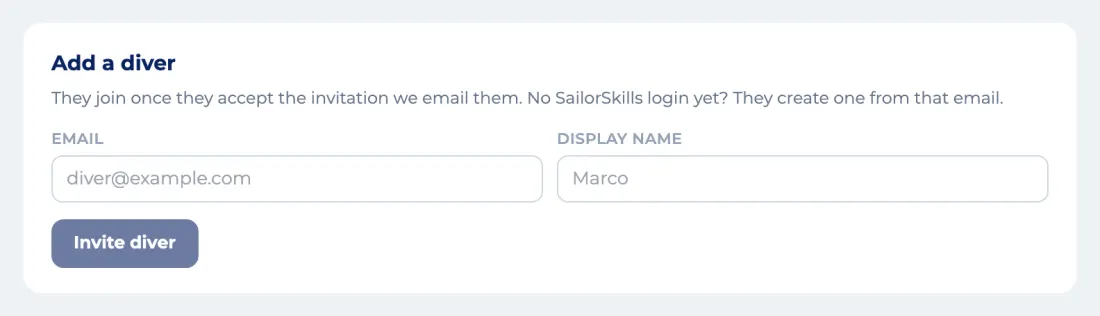
Will anyone else dive for you? Answer Yes, now, Not yet, but soon or No, just me. With Yes, now, list each diver’s email and name. Team divers are a Pro feature: on Pro the invitations go out when you save. On Free they are kept, and they go out when you start Pro, at the end of the wizard or later from Settings › Plan.
The diver opens the invite email and creates a login with that address, right from the link, and they are on your team. They don’t need a Free plan or a business of their own. If they already have a SailorSkills login, they sign in with it and accept instead. The link works once and expires in 7 days.
For privacy, the screen gives the same answer for every email. If a diver never gets the email, check the address and invite again.
Each invite waits under Pending invites in Settings › Team & pay, marked Email sent or Not sent so you can see whether it went out, with Resend and Cancel invite.
Later: Settings › Team & pay, under Add a diver.
Step 8
Three ways a customer pays you:
Card and online payments go to your own Stripe account. SailorSkills takes no cut; Stripe charges its standard processing fee.
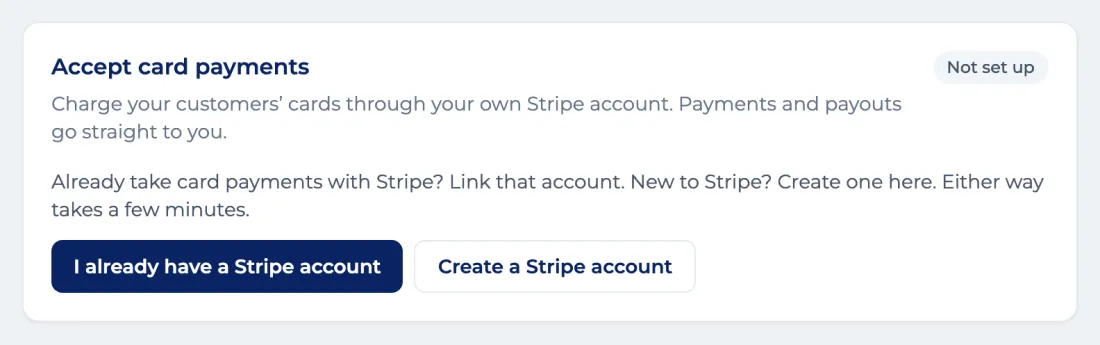
In the wizard, Connect Stripe sets up a Stripe account for your business. It takes about 10 minutes: Stripe asks for your business details, an EIN or SSN, a bank account for payouts and a photo ID. Taking payment another way? Skip it; recording cash and checks still works.
Later, or to link a Stripe account you already have: Settings › Plan, under Accept card payments, then I already have a Stripe account.
Step 9
Last, the wizard recommends a plan from your boats and your team. You choose:
Free, if you work solo. Up to 15 active boats of your own, with logging, billing, receipts, the owner portal, colleagues and the Exchange. No card needed. Free has no team divers.
Pro, if you have a crew or more boats. Divers and admins are free and unlimited on Pro. Pro is from $49 a month, which covers 50 active boats. Past that you pay per active boat: $1 a boat a month up to 150, then 50 cents. Annual billing gives you two months free. Pro goes through a secure Stripe checkout where you accept the Terms of Service.
Started on Free? Move to Pro any time from Settings › Plan. Your boats and setup stay as they are.
The setup wizard is not pictured here yet.
Step 10
Get the SailorSkills Pro app for your iPhone or Android phone:
Download on the App StoreGet it on Google Play
iPhone app available in the US App Store.
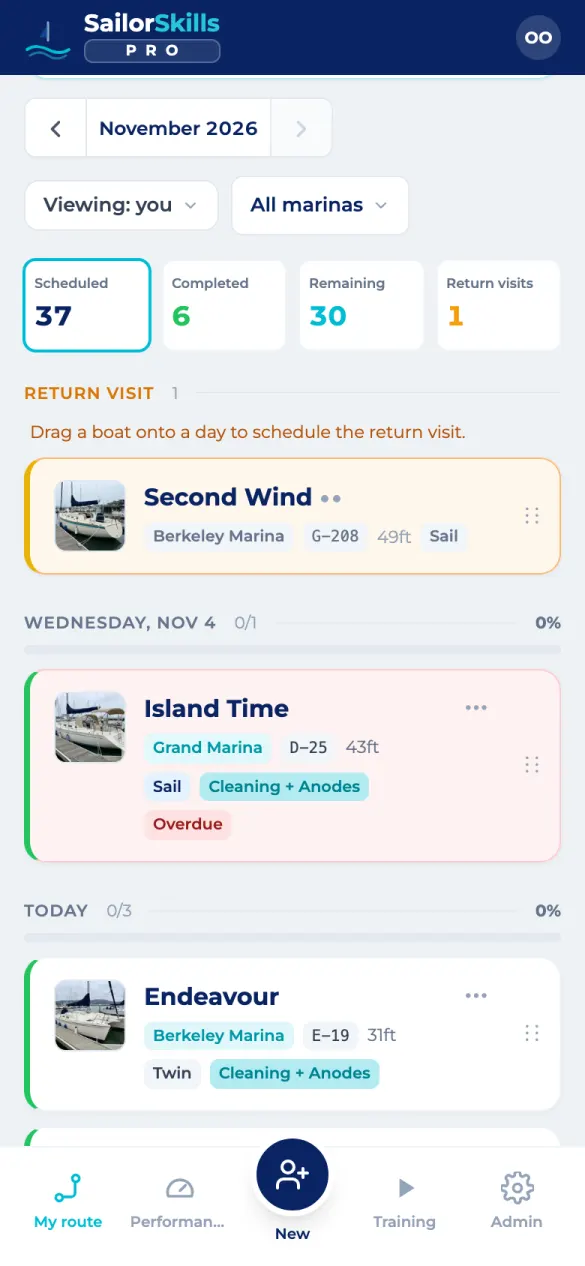
The business switcher only appears when you belong to two or more businesses, so it is not pictured.
Step 11
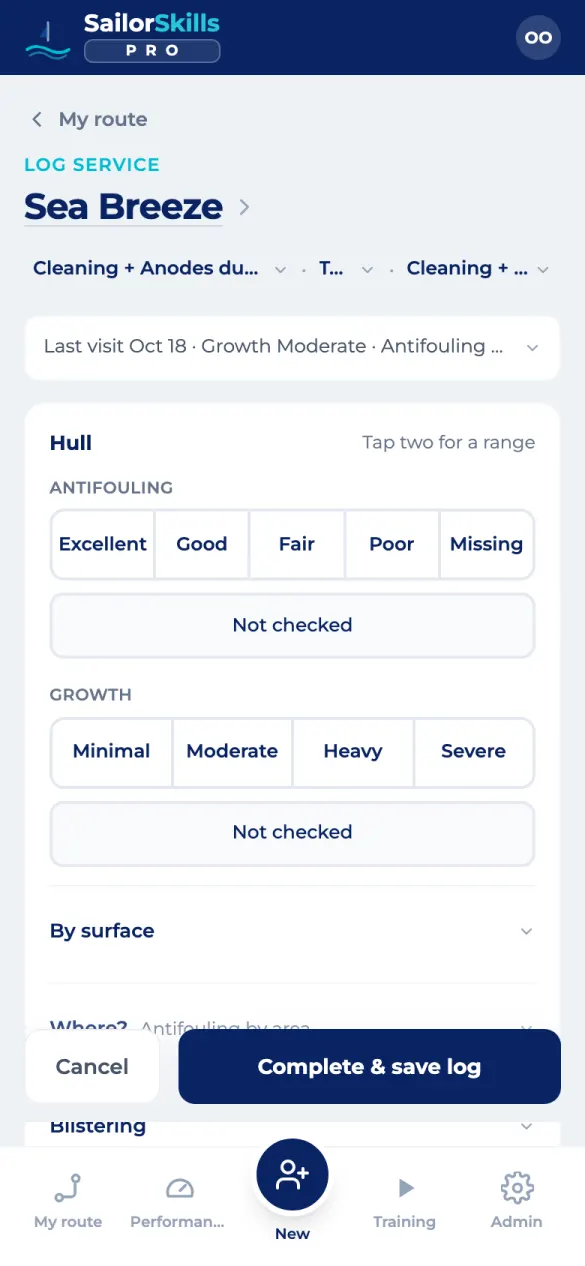
At the boat, open it from My route and log the service: hull condition, growth, anodes and notes, then Complete & save log.
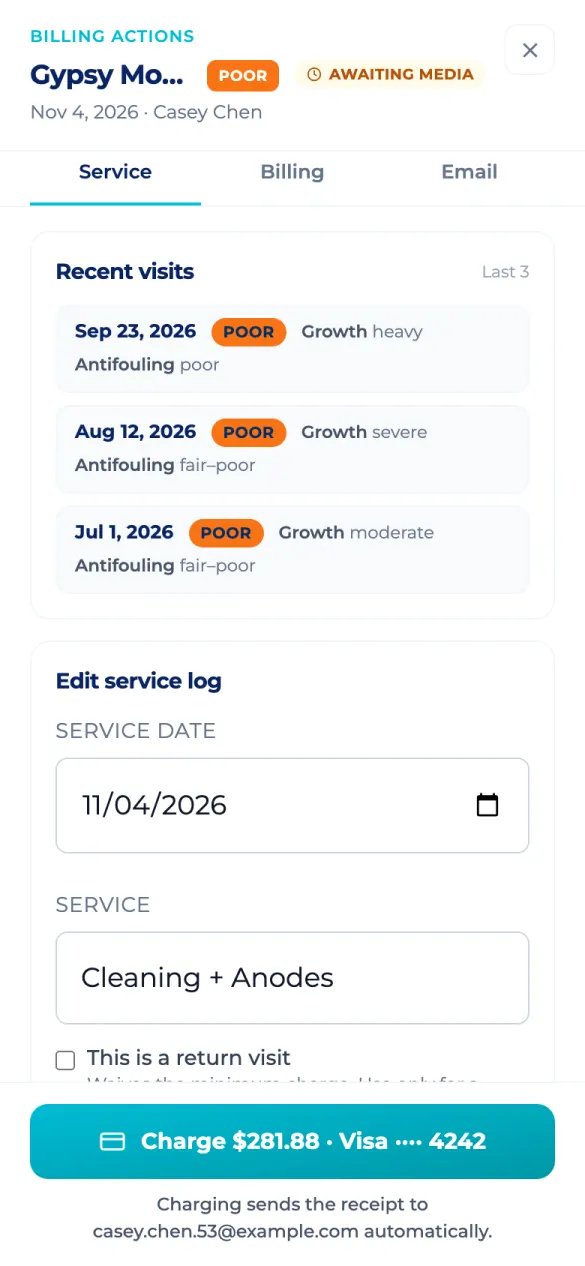
Then open Billing, tap the visit, check the amount and charge the card on file, or send an invoice. The receipt goes to the owner automatically.
Step 12
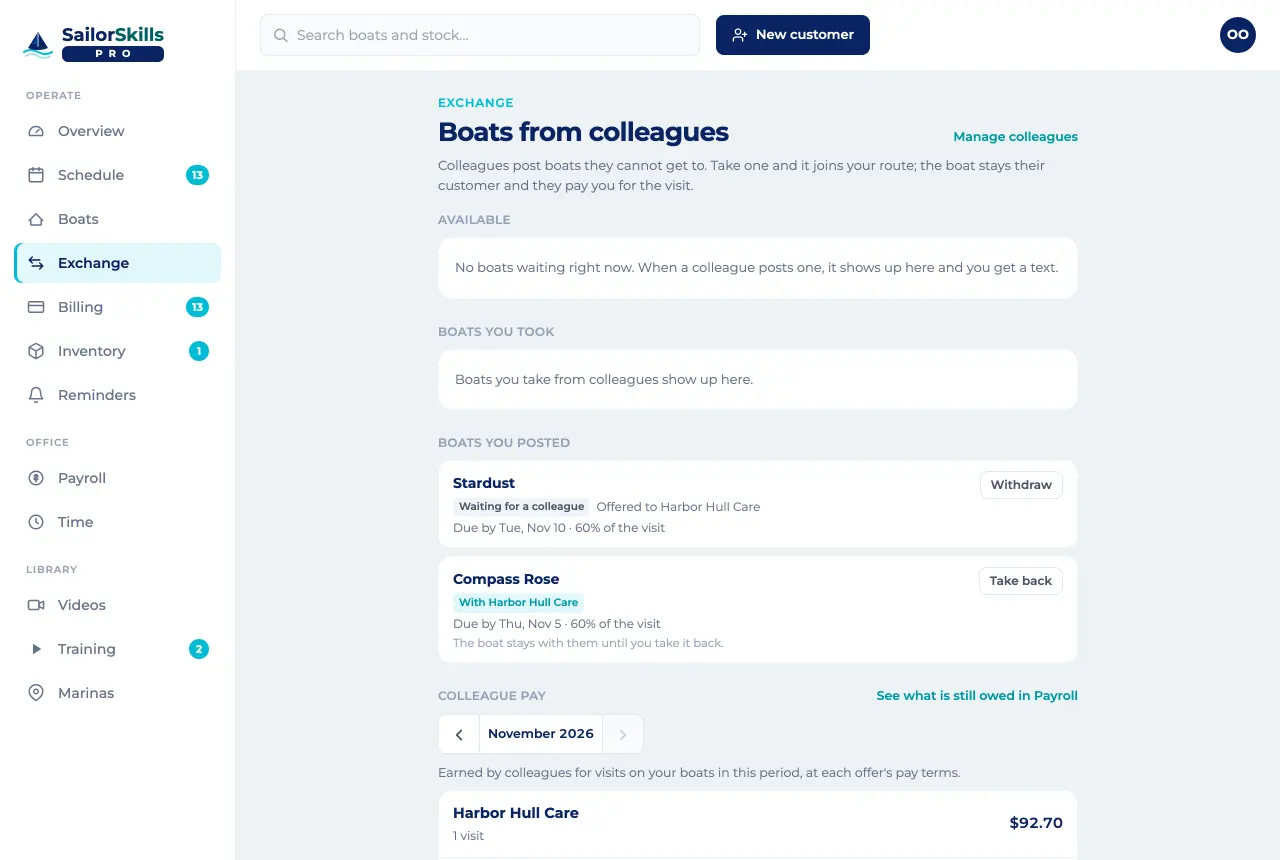
Settings › Colleagues: invite another business on SailorSkills by email. Once they accept, you can pass boats to each other on the Exchange.
Post a boat you can’t get to, with a due date and pay terms (for example 60% of the visit). When a colleague takes it, it joins their route; the boat stays your customer, you bill the owner as usual, and you pay them for the visit. Take one of theirs and it works the other way: it stays their customer and they pay you.
Email us at hello@sailorskills.com.